

Documentation Index
Fetch the complete documentation index at: https://domoinc-arun-raj-connetors-domo-480645-add-reports-sort-asc.mintlify.app/llms.txt
Use this file to discover all available pages before exploring further.
Intro
This article explains how to connect Domo to Google BigQuery using Cloud Integrations, enable writeback to BigQuery, configure native transform, and set up OAuth authentication.Note: Cloud Integrations setup consists of two parts: read-only, which enables virtual tables that read from BigQuery for creating cards, alerts, or inputs in Magic ETL DataFlows; and writeback, which adds the ability to write data back to BigQuery. You can start with read-only and configure writeback later.
Prerequisites
Complete these steps before setting up the BigQuery integration. Create a Domo service account (recommended). You can use any Domo account, but creating a dedicated account is best practice. Assign the following roles:- Manage Cloud Accounts
- Manage DataSet
- Option 1 — Key file. Create a BigQuery service account, grant the required roles and permissions (see Roles and Permissions below), add a key to the service account, and download the JSON key file for authentication.
- Option 2 — Workload Identity Federation (WIF). Open a Domo support ticket to request BigQuery integration using WIF, specifying the provider type (AWS or OIDC). Domo provides an Account ID for AWS or an Issuer URL and Allowed Audiences for OIDC. Create a Workload Identity Pool in Google Cloud IAM, add a provider using the details from Domo Support, and update the mapping to point
assertion.subtogoogle.subject. Create a BigQuery service account, grant the required roles and permissions, including Workload Identity User (see Roles and Permissions below), and download the JSON configuration file from the Connected Service Accounts panel. When exporting the configuration, use the audience provided by Domo Support.
Roles and Permissions
The BigQuery service account must have the following roles. Read-only integration- Roles: BigQuery Data Viewer
- No additional permissions are required for read-only access.
- Roles:
- BigQuery Job User
- Service Account Token Creator (only if using WIF)
- Additional permissions:
bigquery.datasets.createbigquery.datasets.deletebigquery.datasets.getbigquery.tables.createbigquery.tables.deletebigquery.tables.getbigquery.tables.getDatabigquery.tables.listbigquery.tables.updatebigquery.tables.updateDataresourcemanager.projects.getbigquery.jobs.createbigquery.jobs.getbigquery.jobs.update
Note: Domo only deletes BigQuery tables and datasets it creates for temporary staging. Domo does not remove objects it did not create or objects intended to be permanent.
Review the Architectural Overview
The following diagram illustrates the Cloud Integrations–BigQuery integration.
Open the Domo on BigQuery Page
- In the navigation header, select Data Warehouse.
- Select Connect Data > BigQuery. The Domo on BigQuery page appears.

- Select Connect BigQuery to create a new integration, or select Manage Integrations to modify existing integrations. If you selected Manage Integrations, a list of your integrations appears.
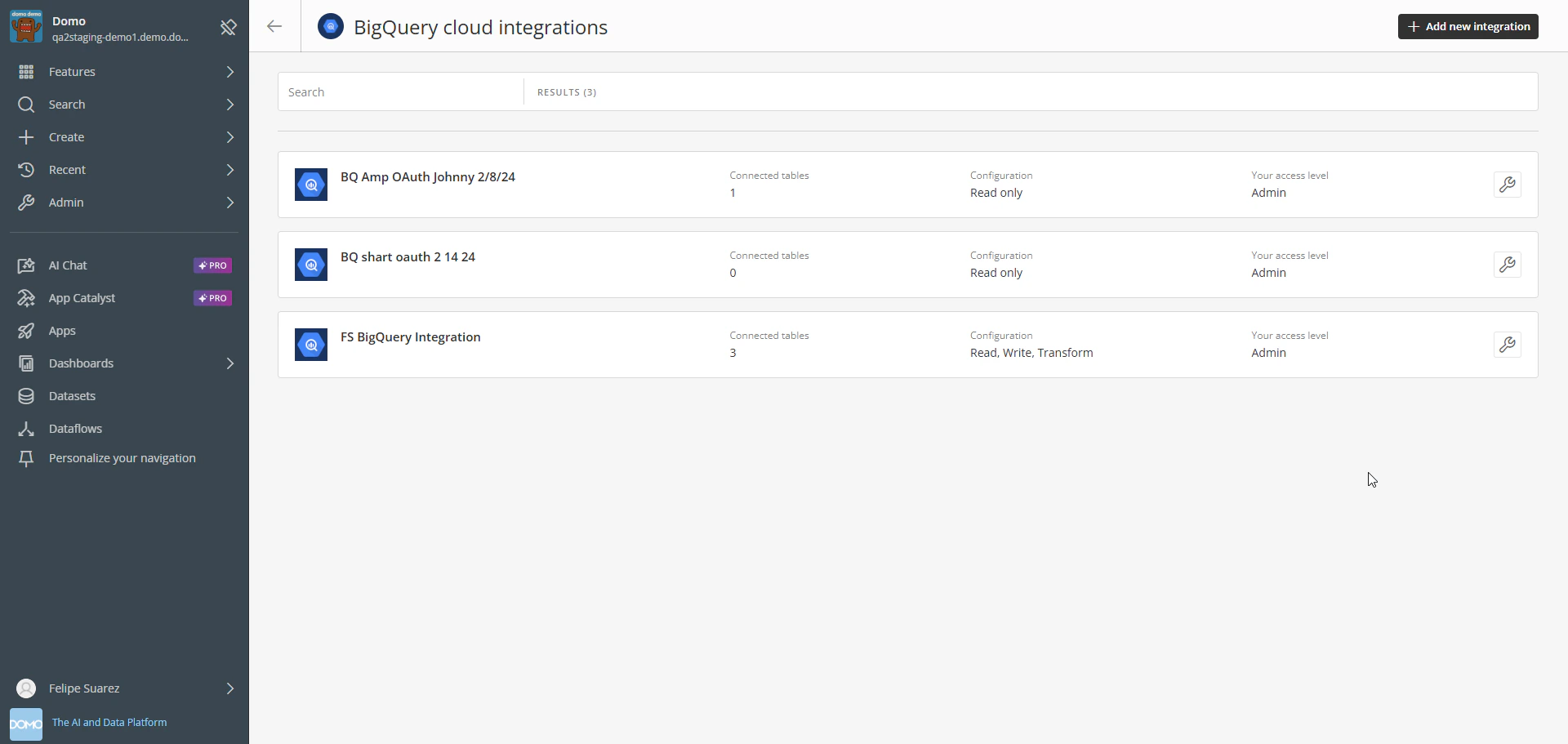
- Select the wrench icon next to an integration to view available options. The options shown depend on your access level. From the integration overview, you can create a new integration, update an existing one, or configure writeback, native transform, and OAuth.
Create a BigQuery Integration
Begin on the Domo on BigQuery page (see Open the Domo on BigQuery Page).- Enter a name to identify this BigQuery integration in Domo. The name does not need to match anything in BigQuery and can be changed later.
- (Optional) Enter a short description to help others understand the purpose of this integration. This description is visible only in the integration details.
- Select an existing service account from BigQuery Service Account, or select Add Account to create a new one. This account authenticates with BigQuery and determines access to tables. To create a service account, see Create a BigQuery Account.

- Select your BigQuery Region.
- Select Save Integration. A confirmation screen appears when the integration is created successfully.
- Select Proceed to Integration Overview. The integration opens.
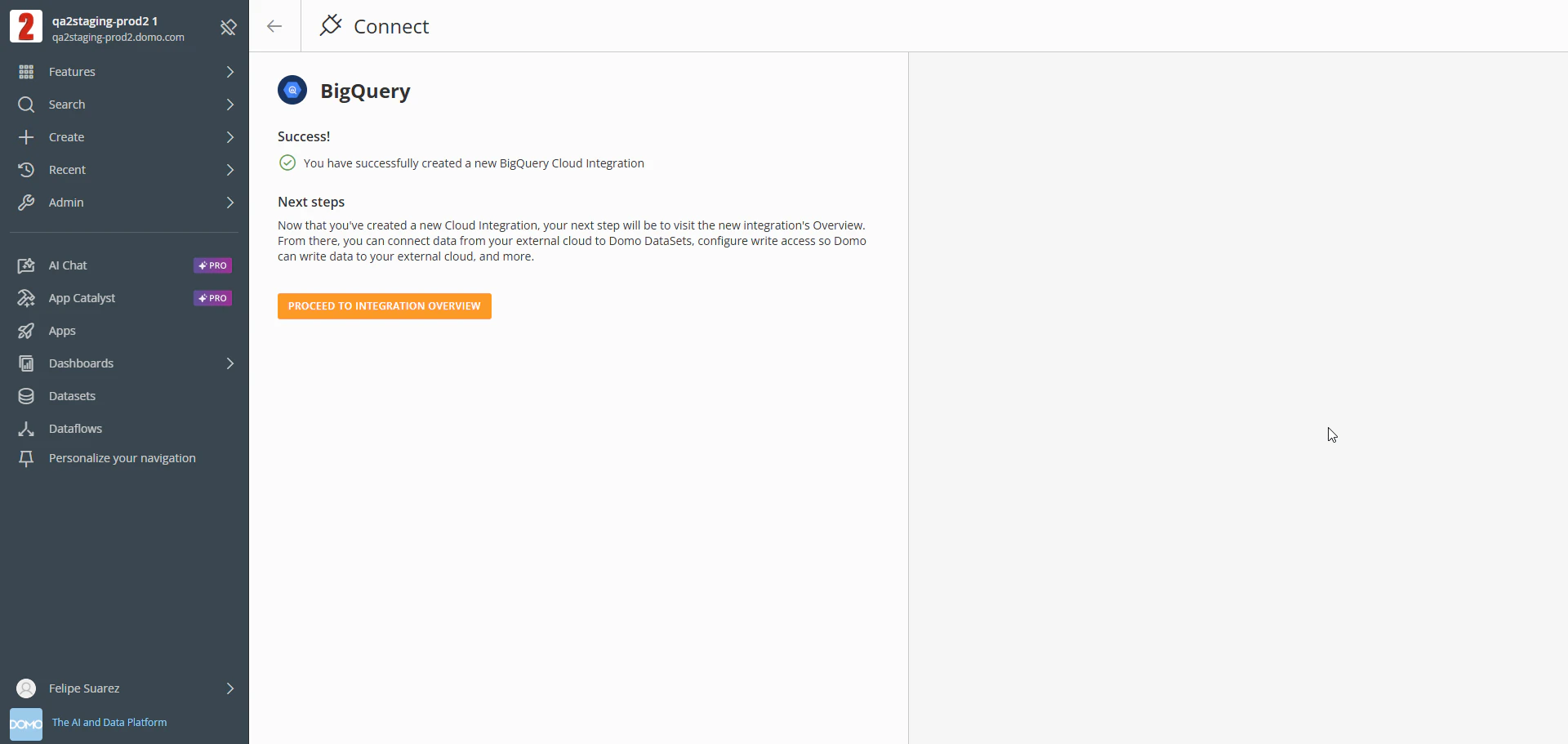
Create a BigQuery Account
Every BigQuery integration in Domo requires an authenticated BigQuery service account. Once created, a single service account can be reused across multiple integrations. Begin in the BigQuery service account creation flow in Domo. Choose one of the following authentication methods.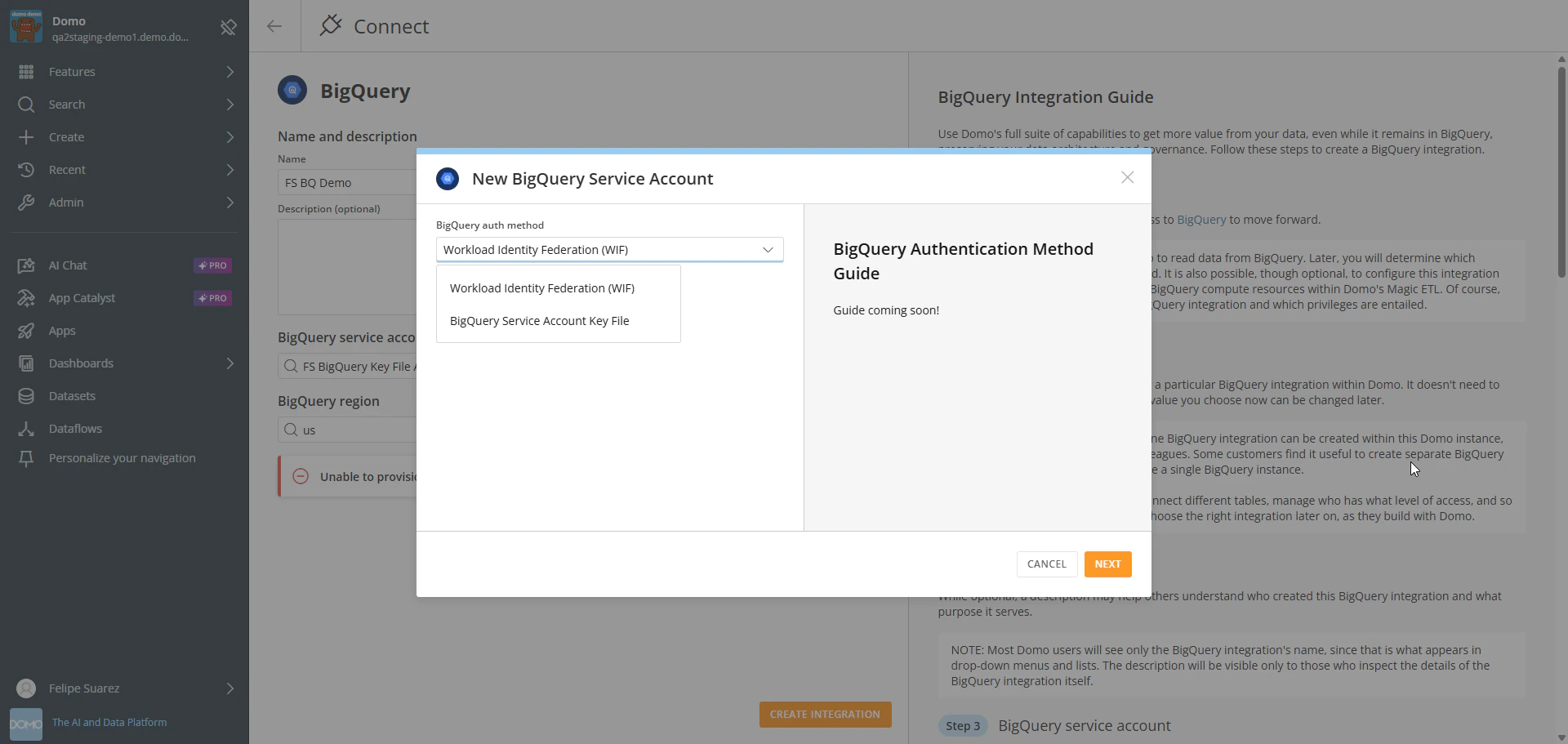
Option 1: Use a BigQuery Service Account Key File
- Enter a name to identify the BigQuery service account in Domo. The name can be changed later.
- Upload the JSON key file you downloaded from the Google Cloud Console.
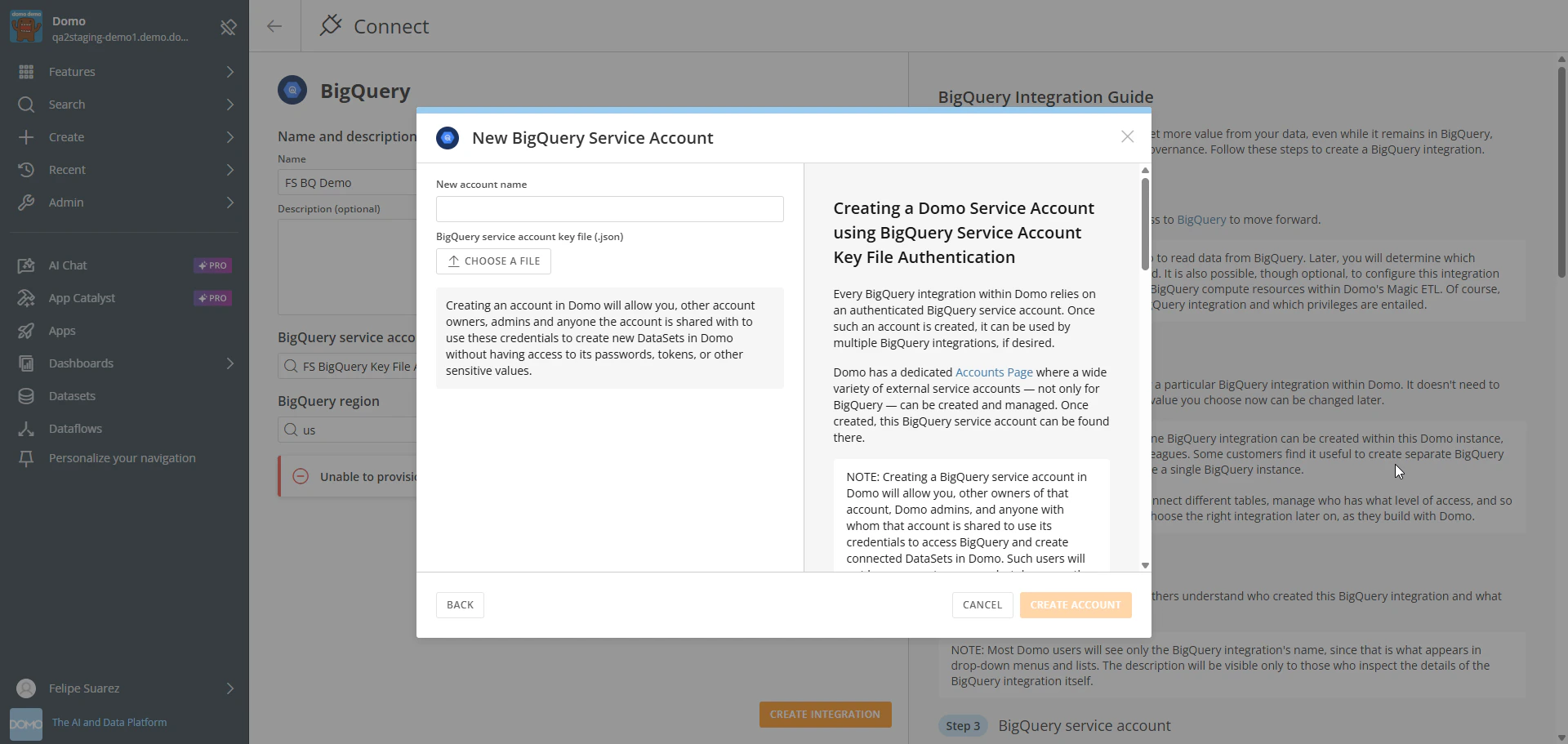
Option 2: Use Workload Identity Federation (WIF)
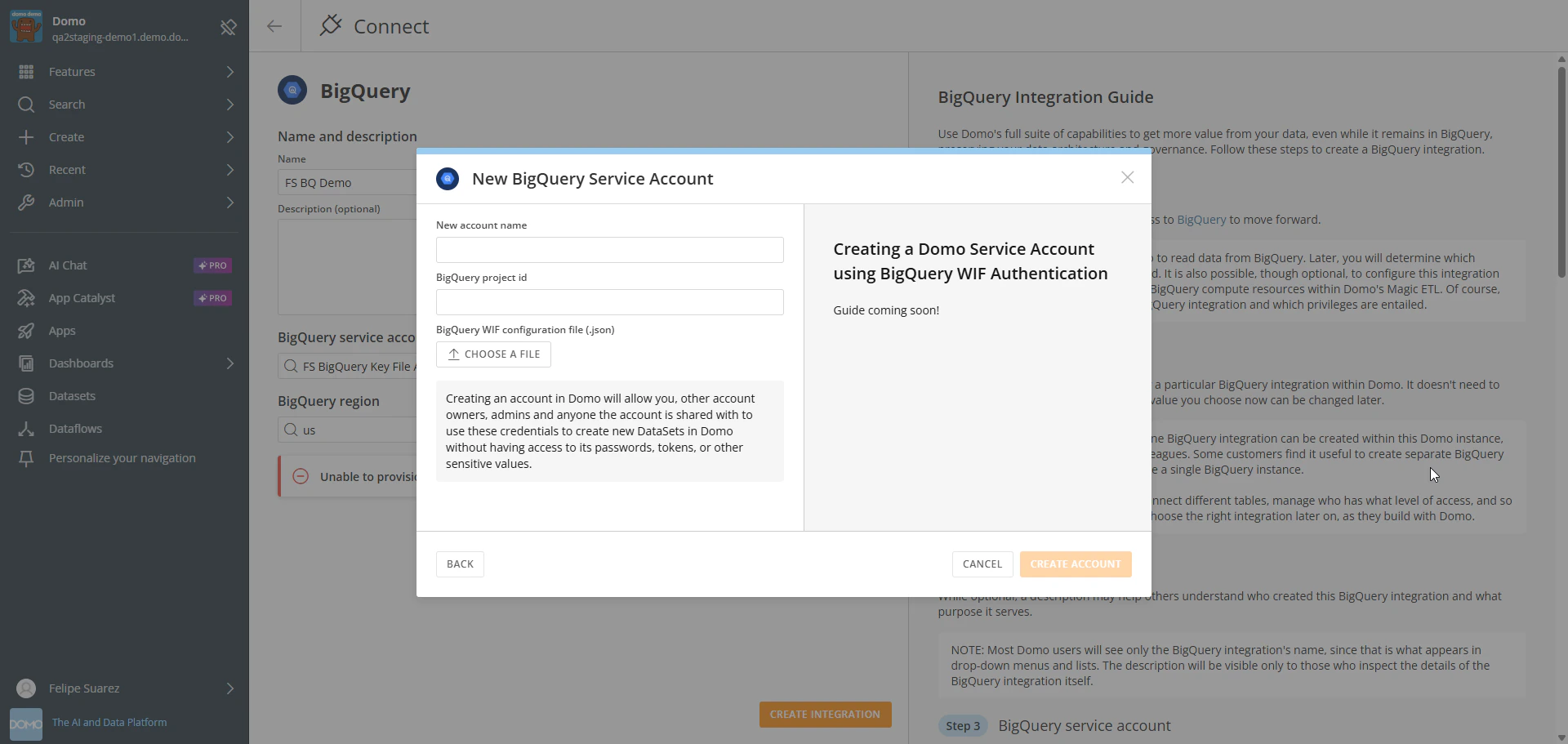
- Enter a name to identify the BigQuery service account in Domo. The name can be changed later.
- Enter the Project ID where you created your service account.
- Upload the JSON configuration file you downloaded from the Google Cloud Console.
Enable BigQuery Writeback
Writeback allows Domo to create and update tables in your BigQuery instance using the associated service account. Enable it when you want to use BigQuery as an output for Magic ETL DataFlows.Note: If you only need to read BigQuery data, skip this section.
- Navigate to Data Warehouse > Connect Data > BigQuery, select Manage Integrations, then select the wrench icon next to your integration. The Settings page appears.

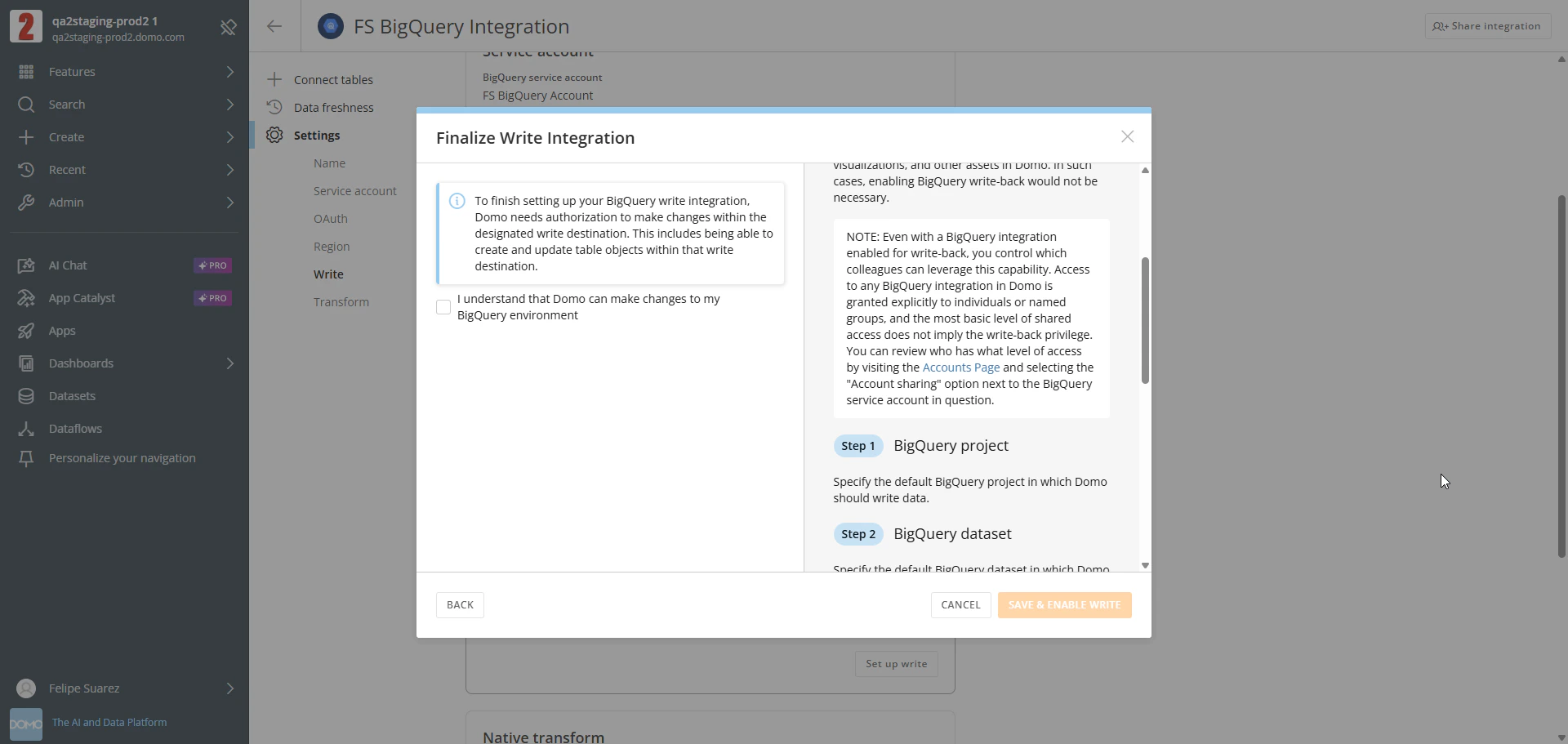
- In the Write section, select Set up write. The Configure Write Access dialog appears.
- Select the BigQuery project to use for writing data from Domo.
- Select the default dataset for data output.

- Select the authorization checkbox to confirm that Domo is authorized to create, modify, and delete objects in BigQuery using the service account.
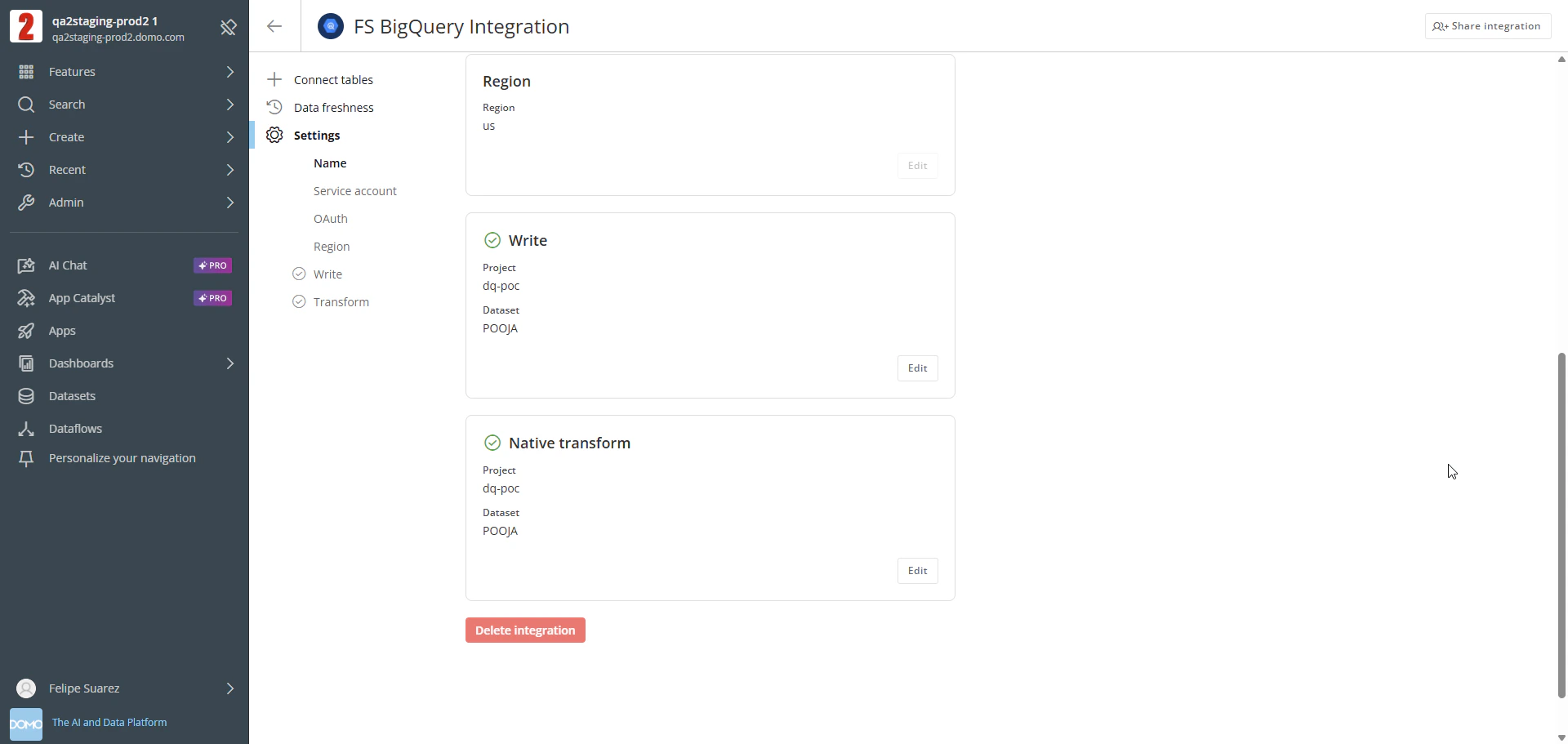
- Select Save & Enable Write. The Write section on the Settings page displays the configured project and dataset with a green checkmark.

Enable Native Transform
Native transform is optional. Without it, Domo uses its own compute resources to read and write BigQuery data. When enabled for an integration, anyone who shares that integration can choose BigQuery compute for individual Magic ETL DataFlows. This is a per-pipeline selection, not a global setting.Note: The project and dataset values for native transform are shared with the writeback configuration. Changing them in one place changes both.
- In the Native transform section, select Set up native transform. The Configure Native Transform dialog appears.
- Select the BigQuery project for native transform.
- Select the default BigQuery dataset.

- Select the authorization checkbox to confirm that Domo is authorized to create, alter, update, and delete objects in your BigQuery environment.
- Select Save & Enable Native Transform. The Native transform section on the Settings page displays the configured project and dataset with a green checkmark.

Configure OAuth
When OAuth is enabled for a cloud integration, all DataSets connected through that integration use OAuth authentication. When you view a card or preview a DataSet built with an OAuth-enabled integration, Domo prompts you to enter your Google Cloud Platform (GCP) credentials. Domo then queries BigQuery data in the context of your account, rather than the BigQuery service account.Note: Currently, Domo enforces OAuth for reading data from BigQuery. This applies to individuals viewing connected DataSets and derived assets such as cards and dashboards. OAuth does not apply to Magic ETL, writeback, or native transforms. These operations use the BigQuery service account instead of an individual GCP account.
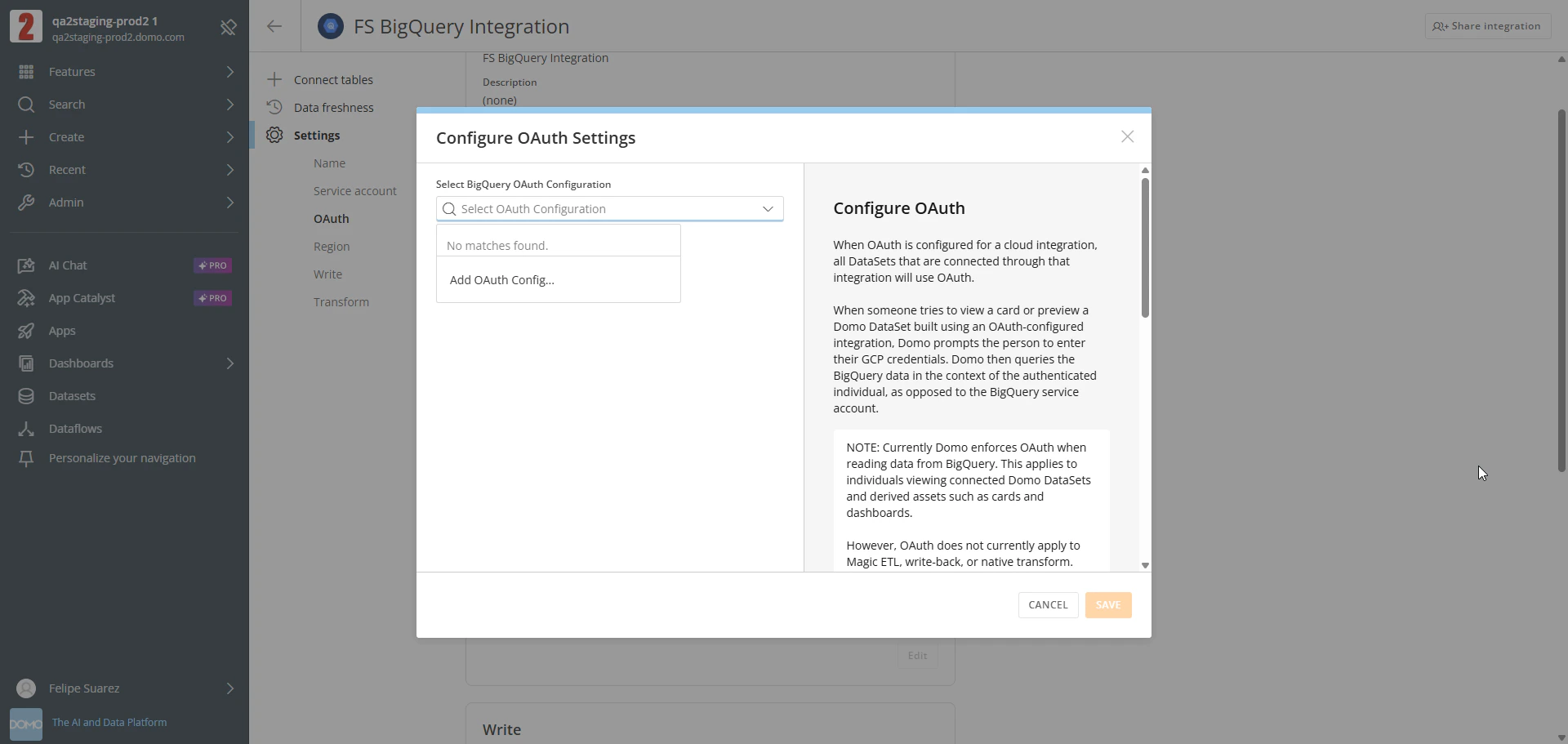
- In the OAuth section, select Set up OAuth. The Configure OAuth Settings dialog appears.
-
Select an existing configuration from the BigQuery OAuth Configuration dropdown, or select Add OAuth Config… to create a new one.
-
(Conditional) For new configurations only, enter an OAuth Configuration Name and the Default billing project ID.
This is the GCP project whose billing account will be charged for query usage.
Note: Enter the Project ID exactly as it appears in GCP, including case sensitivity.

-
Select Connect.
A Google sign-in window appears.

- Select your GCP account and sign in.
- Select Save to apply the OAuth configuration.
Review Query Metadata
Domo provides additional metadata fields for queries executed through BigQuery integrations. These fields help you track and audit query context. They are visible in BigQuery’s job history under the job labels. The following metadata fields are available:| Field | Value |
|---|---|
application | "ice" (Domo’s internal identifier for Cloud Integrations) |
customer | Customer name |
connection | BigQuery integration name |
dataset | BigQuery integration dataset name |
data_source_id | DataSource ID |
card_id | DataSource card ID |
Connect Tables to DataSets
After setting up your BigQuery integration, you can connect BigQuery tables to Domo DataSets using the Connect Tables section in the integration overview. Learn more about connecting tables to Domo.FAQ
Can I use spaces in table names?
Can I use spaces in table names?
No, spaces are not allowed in table names.