

Documentation Index
Fetch the complete documentation index at: https://domoinc-arun-raj-connetors-domo-480645-add-reports-sort-asc.mintlify.app/llms.txt
Use this file to discover all available pages before exploring further.
Intro
The Procore Analytics API (Cloud Connector) provides secure, read-only access to Procore data for analytics and reporting using the Delta Share protocol. It is designed for bulk data consumption rather than transactional REST calls, allowing organizations to connect BI tools, data warehouses, or custom analytics systems directly to Procore’s structured datasets using shared credentials. Access to the API is established using a bearer Token, endpoint, and share, which authenticates and defines the Procore data available for your company. Once connected, the data can be retrieved by specifying the schemaName and tableName, where the schema represents a logical grouping of data and the table represents a specific dataset. Using these parameters, you can extract complete tables containing project, financial, and operational data such as projects, budgets, commitments, invoices, RFIs, submittals, and logs, depending on the modules enabled in Procore. This setup allows for consistent and scalable data extraction for analytics and reporting use cases. You can connect to your Procore Analytics account in the Data Center. This topic discusses the fields and menus that are specific to the Procore Analytics connector user interface. To add DataSets, set update schedules, and edit DataSet information, see Adding a DataSet Using a Connector.Prerequisites
To connect to your Procore Analytics account and create a DataSet, you need the following:- Bearer Token
- Endpoint
- Share
Generating Data Access Credentials
The Procore data can be accessed using the Delta Share Token method. The access token is a string of digits you will enter in your applicable data connector to access the data. To generate your access token, follow the steps below:Note: - You must have the Procore Analytics tool enabled at the Company level for your company’s Procore account.
- Users must have *Admin-*level access to the Procore Analytics tool to generate an access token.
- Log in to Procore.
-
Click the Account & Profile icon in the top-right area of the navigation bar.
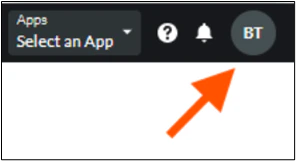
- Click My Profile Settings.
- Under Choose Your Connection with Procore Analytics, generate a personal access token with the Delta Share option.
-
Select Delta Share Token and ensure to choose an expiration date.

- Click Generate Tokens.
Note: It is recommended that you copy and store your token for future reference since Procore does not store tokens for users.
7. Use the Bearer Token, Share Name, Delta sharing server URL (endpoint/ base URL of the connector), and your Share Credentials Version to begin accessing and integrating your data.
- Note:
- The token will disappear after one hour, or it will also disappear if you navigate away from the page. To generate a new token, return to Step 1.
- It may take up to 24 hours for the data to become visible.
- Please do not regenerate your token during this processing time, as doing so may cause issues with your token.

Connecting to Your Procore Analytics Account
This section enumerates the options in the Credentials and Details panes on the Procore Analytics Connector page. The components of the other panes on this page, Scheduling, and Name & Describe Your DataSet, are universal across most connector types and are discussed in great detail in Adding a DataSet Using a Connector.Credentials Pane
This pane contains fields for entering credentials to connect to your Procore Analytics account. The following table describes what is needed for each field:| Field | Description |
|---|---|
| Bearer Token | Enter the bearer token. |
| Endpoint | Enter the endpoint. |
| Share | Enter the share. |
Details Pane
| Menu | Description |
|---|---|
| Schema Name | Enter the schema Name. |
| Table Name | Enter the table name. |