

Documentation Index
Fetch the complete documentation index at: https://domoinc-arun-raj-connetors-domo-480645-add-reports-sort-asc.mintlify.app/llms.txt
Use this file to discover all available pages before exploring further.
Intro
Create DataFlows to combine and transform your data using SQL queries. This is a more technical DataFlow solution than using Magic ETL but may provide a greater breadth of options. Learn how to create a Magic ETL DataFlow. You access the interface for creating a SQL DataFlow from the Data Center. For more information about the Data Center, see Data Center Layout.Create a SQL DataFlow
Follow the steps below to create a SQL DataFlow. Notes:-
Redshift does NOT support stored procedures, as documented here
 . The alternative is to use a MySQL DataFlow—MySQL supports stored procedures.
- Redshift DataFlows are NOT supported on Azure environments. If you have an Azure-backed environment (rather than a default AWS environment), Redshift DataFlows will not work.
-
Select Transform Data > SQL Transforms.
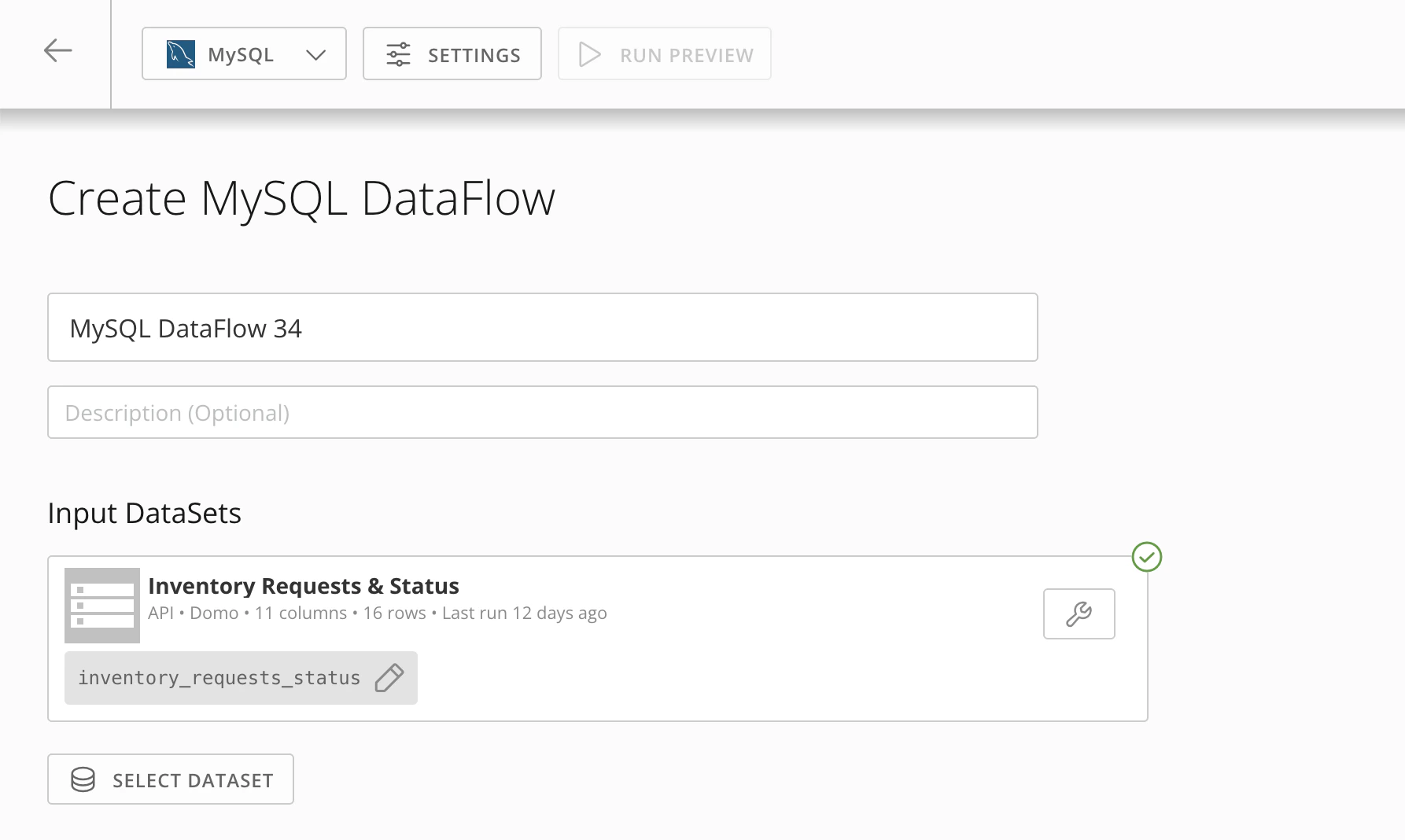
The DataFlow creation screen displays. -
Use the dropdown to choose whether to use MySQL, Redshift, or Adrenaline.

- Enter a name and optional description for the DataFlow.
- Use Select DataSet to choose a DataSet that already exists in Domo. You cannot upload other DataSets during the DataFlow creation process. Learn how to add new DataSets to Domo via connector.
-
- (Optional) Under the Select Columns tab, you can remove columns you don’t want to include in the DataSet by clicking the “X” to the right of the column name, or remove all columns by clicking None.
2. (Select how the DataSet will be processed. Options include processing the Entire DataSet or Only new rows appended since the last DataFlow run.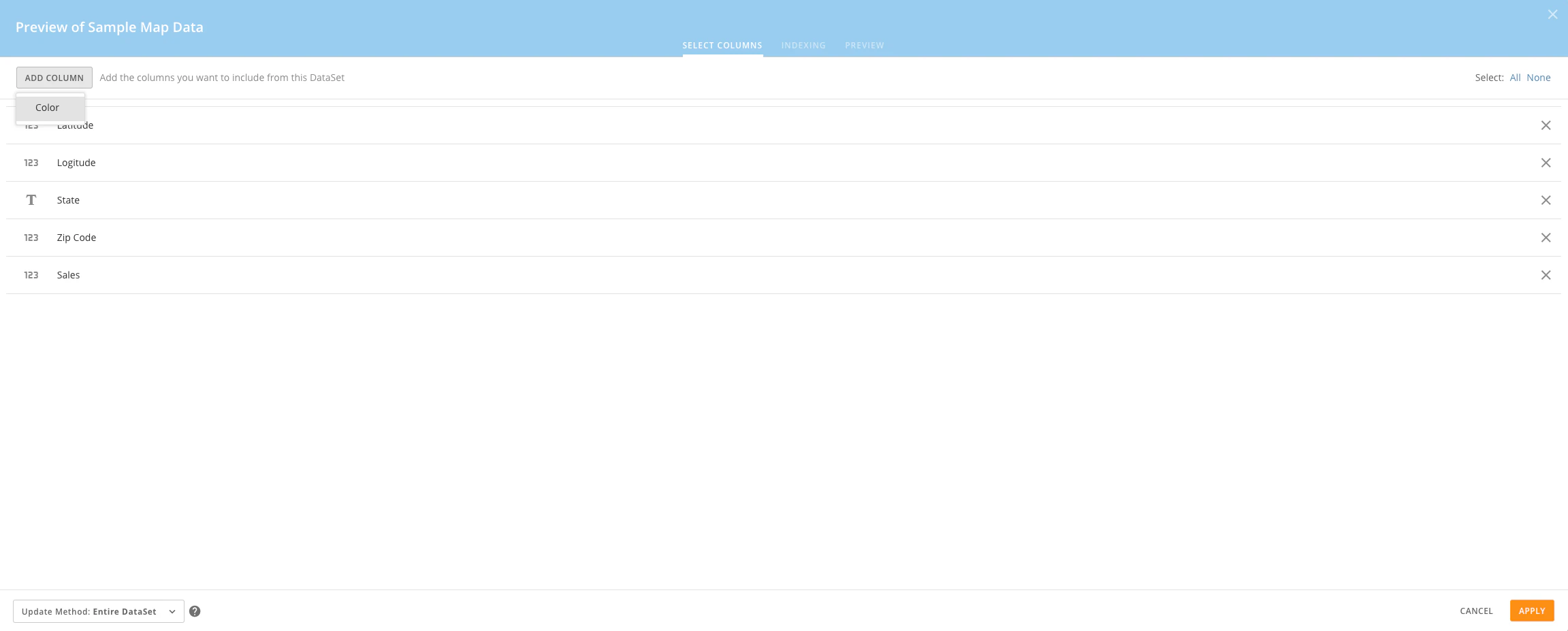

- Select as many additional input DataSets as you want by repeating step 5. 4. (Optional) Add transforms by doing the following:
-
Click Add Transform.
A Transform dialog appears with various options. For more detailed information about these options, see Understanding Transform and Output DataSet options. - Enter SQL code to make the desired transformations to the input DataSet(s).
- Click Apply.
-
Click Add Output DataSet.
An Output DataSet dialog appears with various options. For more detailed information about these options, see Understanding Transform and Output DataSet options.- Enter SQL code to indicate how you want the input DataSets to be combined.
If you have transformed the input DataSets in the Transform dialog, those transformations are applied here. - (Optional) Add additional output DataSets by repeating the previous two steps.
- Click Done.
- Enter SQL code to indicate how you want the input DataSets to be combined.
- Schedule your DataFlow in the Settings pane. For more information on the different scheduling options, see Advanced DataFlow Triggering.

- (Conditional) Do one of the following to save your DataFlow:
- If you want to run the script that outputs this DataFlow to a usable DataSet in Domo, click the orange down arrow in the upper right corner of the screen, select Save and Run, enter a version description if desired, then click Save to confirm. This starts the process of generating DataSets from the DataFlow. This generation process may take from a minute to an hour or more, depending on the size of the input DataSets. In addition to generating DataSets, a card for the DataFlow is added to the DataFlows listing in the Data Center.
- If you want to save this DataFlow without outputting it to DataSets at this time, click Save, enter a version description if desired, then click Save again to confirm. A card for the DataFlow is added to the DataFlows listing in the Data Center, but no DataSets are generated. You can run the DataFlow to output DataSets at any time by mousing over the card for the DataFlow in the DataFlows listing, clicking
 , and selecting Run. This option and the other options available in this menu are discussed later in this topic.
Understand Transforms and Output DataSet Options
When creating a new transform, you can choose to create either a table- or SQL-type transform.- A Table Transform creates a new table using a SELECT statement and will always generate an output table. Due to an output table being generated, you can create easy indexes based on these tables.
- A SQL Transform creates a table that typically doesn’t include a SELECT statement such as a stored procedure. This type of transform does not generate an output table.
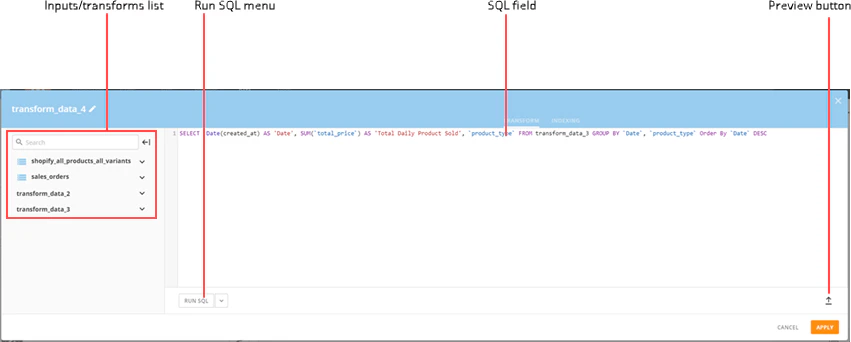
Component | Description |
|---|---|
Inputs/Transforms List | Shows the names of all input DataSets you have selected for this DataFlow for your convenience in writing SQL statements. In addition, any previously created transforms appear here. These names appear in both the Transform and Output DataSet dialogs. If you transform one or more input DataSets in the Transform dialog, those transforms are applied to the input DataSets when you refer to them in the Output DataSet dialog. Clicking on an input DataSet opens a list of all columns in the DataSet and their data types (decimal, text, date/time, etc.). |
Run SQL menu | Provides access to several options:
|
Preview the Data
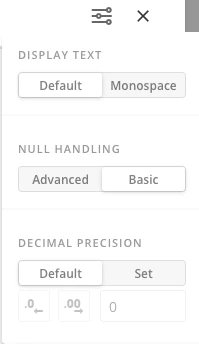
The preview will display in the transform after you have chosen Run SQLor Run to here. You can select options in the preview menu to allow you to change how the results are displayed in the preview table for easier viewing.
| Component | Description |
|---|---|
| Display Text | - Default - Displays the text in the standard font. - Monospace - Displays the text with more spacing in between the letters.  |
| Null Handling | - Advanced - Displays the word null or empty stringto specify which type of value is being displayed in the column. - Basic - Shows blank cells in the table. (This is the default setting.) |
| Decimal Precision | - Default - Displays the number as it appears in the DataSet. - Set - Displays a specified amount of decimal places.  |
Easy Indexing
An index is a data structure that improves the speed of operations in a table. With Easy Indexing, you can quickly add an index on one or more columns right to your input DataSet or table transform. To create an index in an input DataSet or transform,- Open the editor for the input DataSet or transform.
- Select the Indexing tab.

- Choose your Index Type.
- Select which column to apply the index.
- Click Done.
Understand Strict Mode
Strict Mode controls how MySQL handles invalid or missing values in data-change statements and also affects the handling of division by zero, zero dates, and zeroes in dates. Learn more in the MySQL documentation .
.
Best Practices for Creating DataFlows
Each DataFlow should meet the following criteria:- Each step of the transformation has a descriptive name.
- There is a description of the input DataSets being merged or manipulated and the DataSet being created
- The data owner is indicated.
- The output DataSet and the DataFlow have the same name. This allows for easy identification of which DataSets are produced by which DataFlows in the Domo Data Center.